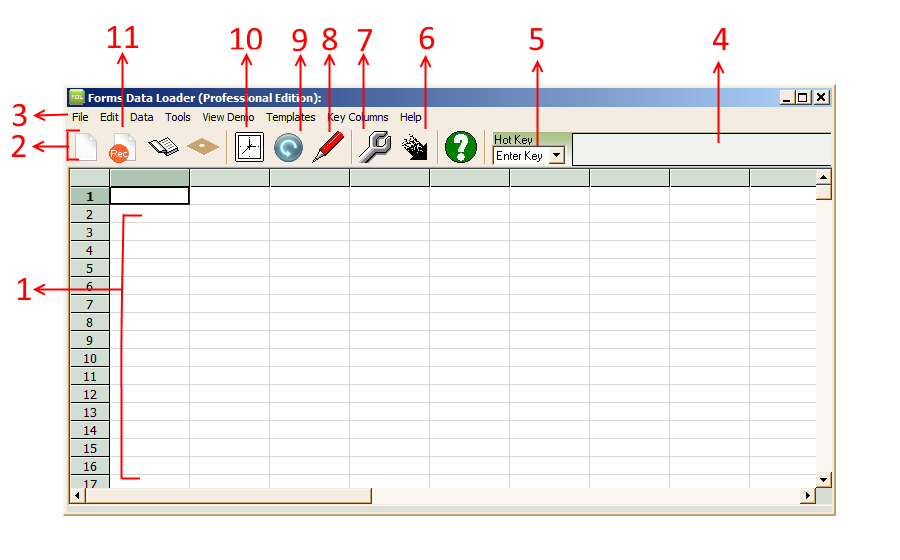
1 Data Loader Sheet ( This is actually where you will be entering the data, keystrokes, or shortcuts / commands)
2 Toolbar
3 Menu Bar
4 Textbox where you can write a description or comments for a data load sheet. This description is saved along with data load sheet
5. Hot Key Drop down : You can choose an Hot Key like TAB or ENTER here and It can be use to quickly insert a hot key column in the data load sheet by right clicking
6 Start Loader button: After you have prepared the load, you need to click this button to start loading
7 Settings Button : You can configure various Data Loader default settings by clicking this button
8 Edit Headings Button: You can click this button to enter user friendly names for different columns in your data loader sheet
9. Shortcuts / Commands Button: Click this button to View, Edit or Add Data Loader Commands
10. Delays Button: Click this button define time delays i.e. amount of time Data Loader has to wait after executing different commands / shortcuts
11. Data Loader Macro Recorder: Data Loader can record a Macro Load sheet for you. Just click this button to start Macro Recorder
← Back to User Guide