
Using this feature Forms Data Loader can be used to load data accurately and several times faster than Macro Loading. It is more reliable, the load will stop whenever an error occurs, because although load is build using Forms Data Loader it is executed by Oracle Forms.
This method applies to Oracle Java Applet Forms (also known as Oracle Traditional Forms or Oracle Core Forms). This method is not applicable to Oracle Web Based Forms / Oracle OAF forms, for Oracle Web Forms please use HTML Forms Data Loader which is specially built for these forms.
Using this method you can load the data in Oracle Apps by performing the following Steps.
First Setup Oracle Forms for Record and Playback. If you have not configured Oracle Forms for record and playback then do so before proceeding.
Click here for Setup Procedure
Step 1
In a windows client login as user for whom you turn on recording and open
the required form and enter at least 2 sample records please follow the
given guidelines while recording
Guidelines for Recording Loads.
Step 2
Open the recorded file in Forms Data Loader, FDL will ask you to identify
the First Field and Last Field of repeating section as shown below. Here
Select the First and Last Repeating Fields of the First Sample record you
have entered in the above step while recording the file
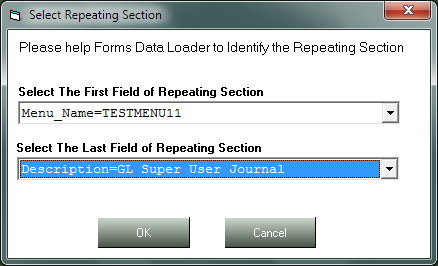
Accurately selecting the First and Last field of the repeating section is crucial for correct execution of load.
Step 3
Once you have identified the first and last field of repeating section Forms Data Loader will show a spreadsheet showing the records you have entered in forms as shown below.
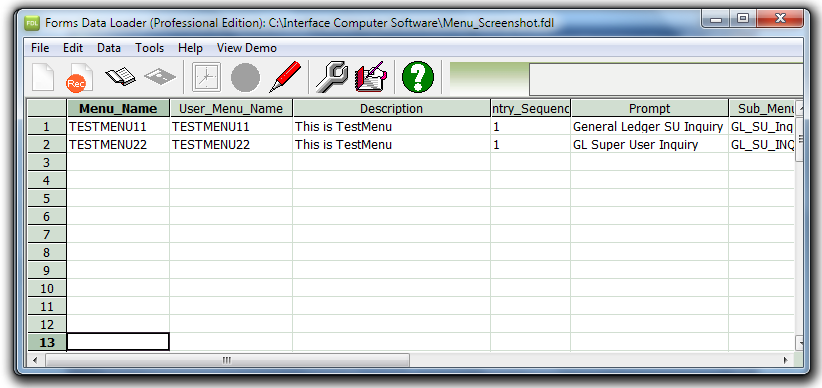
Now you can add records to the spreadsheet by directly typing or importing from Excel CSV files or from any delimited file. You can also copy and paste the data from any spreadsheet.
Once you have populated the spreadsheet save the file. When you save
the file Forms Data Loader will generate the code necessary for playing
the file in Oracle Forms. You can click the
 button to view
the code.
button to view
the code.
Step 4
Now take this file to the machine where forms server is running and copy it to the location usually $COMMON_TOP/admin/log directory by giving the name which you have specified in "play=" option in profile settings while configuring Oracle Forms for Record and Playback.
If you can directly open forms without going through sign-on pages then you can type the record and play file in the address itself like for example
In UNIX:
http://host.domain:port/dev60cgi/f60cgi?record=rec.fdl%20play=myplay.fdl
In Windows
http://host.domain:port/dev60cgi/ifcgi60.exe?record=rec.fdl%20play=myplay.fdl
Oracle Forms will start loading the records as soon as forms is open. Step 5 is not needed if you are opening the forms directly.
Step 5
Now login to Oracle Application as a user for whom you have set the
profile setting for playback and open the desired form. Oracle Forms will
start loading the records as soon as forms is open.
© Interface Computers All Rights Reserved